You Saved It. Now What? Learning Queue Tells You Exactly What to Learn Next.
You've saved 50 items. You open your library to start learning. And then you spend five minutes deciding where to start, open something in the middle, get distracted by something newer you saved yesterday, and close the tab without finishing anything.
Saving and learning are separate acts. Most tools handle the first one. The Learning Queue handles the second.
The problem with an unordered library
When your saved content is just a feed — newest first, no progress tracking — a few things happen:
- You always gravitate toward what you just saved, which means older saves never get touched
- You have no idea how long anything will take, so you pick whatever feels easiest
- You can't tell what you've already partially worked through vs. what you've never opened
- Without a prioritized list, every session starts with a decision instead of action
The gap between "saved" and "learned" isn't just a time problem. It's a structure problem. A library with no order and no progress tracking is a backlog that only gets bigger.
What the Learning Queue does
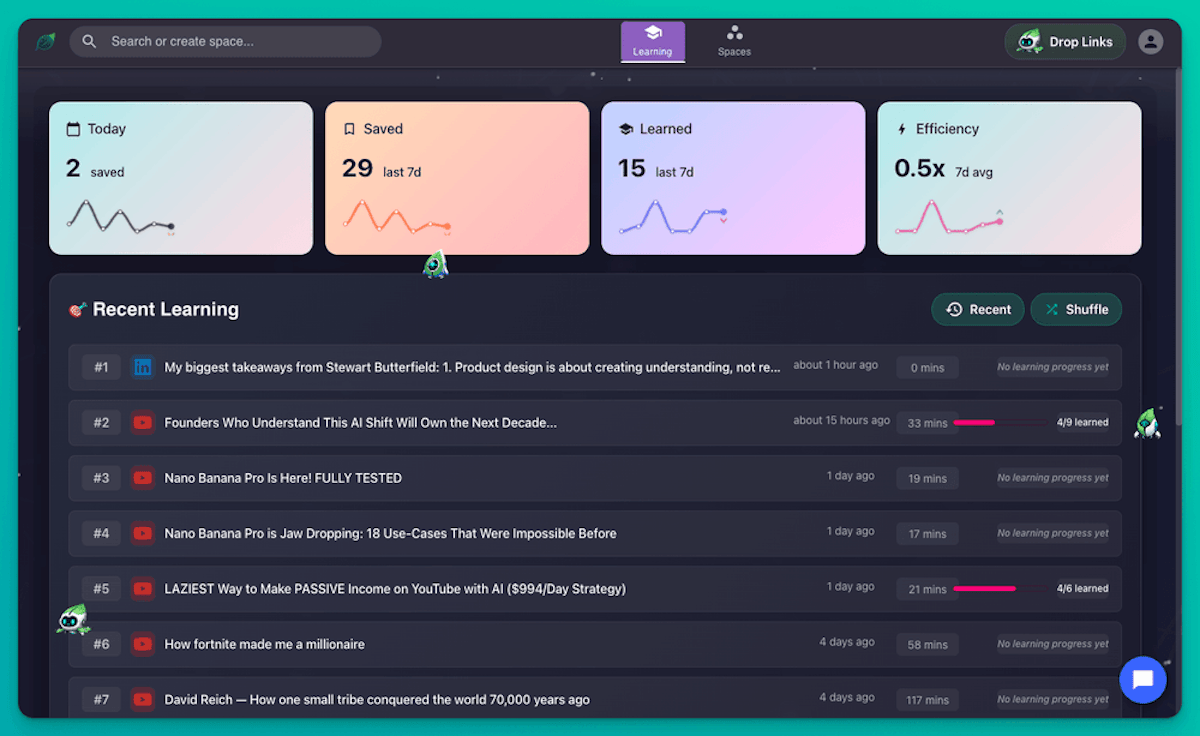
The Learning Queue — labelled "What to learn next" — is a ranked list of everything in your saved library, with progress data for each item:
- Content type — YouTube, article, LinkedIn, PDF
- Time since saved — so older saves aren't invisible
- Estimated time to consume — so you can match content to the time you have
- Learning progress — e.g. "0/9 learned" or "4/12 learned" — so you can see exactly where you left off
At the top of the queue: your total library progress — e.g. "26/393 insights learned (7%)." Not just a count of items saved, but a real measure of how much of your library you've actually worked through.
Additional controls:
- Recent — sort by what you saved most recently
- Shuffle — break out of recency bias and rediscover older saves
- List / Graph / Space views — see your queue as a ranked list, a visual layout, or filtered within a specific Space
- Focus filter — set a topic, and the queue instantly narrows to only the content relevant to that focus area
How to use the Learning Queue
- Click Learning in the top navigation
- Review your ranked queue — check time estimates and progress
- Start with the highest-priority item or pick by available time
- When you return to an item you've partially worked through, your progress is exactly where you left it
- Use Shuffle occasionally to surface saves you've been ignoring
Learning Queue alongside Focus Mode and Learning Metrics
The Learning Queue is your view of what's waiting. Focus Mode filters it — set a topic and the queue shows only what's relevant to that area right now. Learning Metrics shows the aggregate: how many insights you've marked learned across the full queue, and how your efficiency is trending.
The Saved vs. Learned gap in Learning Metrics lives in the queue. This is where you close it.
Who uses the Learning Queue
Knowledge workers with ongoing research across multiple topics. The queue with Focus filtering means they can isolate what's relevant to the current project without losing the rest of their library.
Students managing a mix of course materials, lecture videos, and supplementary reading. Per-item progress tracking means they always know what's been partially worked through and what's untouched.
Lifelong learners with large backlogs. Shuffle plus time estimates turns an overwhelming pile into manageable choices: "I have 20 minutes — here's a 15-minute item I've never started."
Frequently Asked Questions
How is the queue ordered by default?
By recency — most recently saved first. Use Sort or Shuffle to change the order. Focus filtering narrows the full queue to a specific topic without reordering it.
What does "0/9 learned" mean for a single item?
It shows how many insights within that content item you've marked as learned in Highlight Cards. 0/9 means you've saved it but haven't checked off any insights yet.
Can I remove items from the queue?
Items leave the queue as you work through them — marking insights as learned moves them toward complete. You can also archive or delete saves from your library.
What's the difference between List, Graph, and Space views? List is the default ranked view. Graph is a visual layout of your saved content. Space view filters the queue to a single Space — useful when you want to work through everything in one collection.
What's the total library progress percentage?
It's the ratio of insights you've marked learned across your entire library. A library of 393 insights with 26 learned is 7%. It's the most honest number SaveForLater.ai shows you.
Does the queue include content from all my Spaces?
Yes — the full queue includes everything in your library. The Space view and Focus filter let you narrow it without permanently changing the underlying queue.
The bottom line
Saving without a queue is just collecting. The Learning Queue turns your library into a prioritized list with real progress data — so every session starts with clarity, not a decision.
You know how long it takes. You know how far you've gotten. You know what's next.
Related: Focus Mode · Learning Metrics · Highlight Cards