The Best Part of That Video Was a Diagram. Screenshots Lets You Capture and Keep It.
You're watching a conference talk and the presenter puts up a systems architecture diagram that explains in one image what took you 20 minutes to understand from reading. You want to save it.
Your options: take a system screenshot (which lands on your desktop, detached from all context), try to sketch it in your notes app, or just... remember it.
Three weeks later, you remember there was a great diagram. You don't remember which video. You're not watching 45 minutes of content again to find it.
The problem with visual content and external tools
Some of the most valuable information in a video or article is visual — a framework diagram, a performance chart, a slide that synthesizes a whole concept. Text extraction handles words. It can't capture a visual.
The workarounds are all worse than the problem:
- System screenshot → lands on your desktop with no connection to the content, no context, no way to find it later
- Notes app sketch → you're drawing with a mouse, losing accuracy, still detached from the source
- Screenshot app → another tool, another place to search when you need it
- Just remember it → you don't
There's no native way in most read-later tools to say "that visual moment, right there, attached to this content item."
What Screenshots does
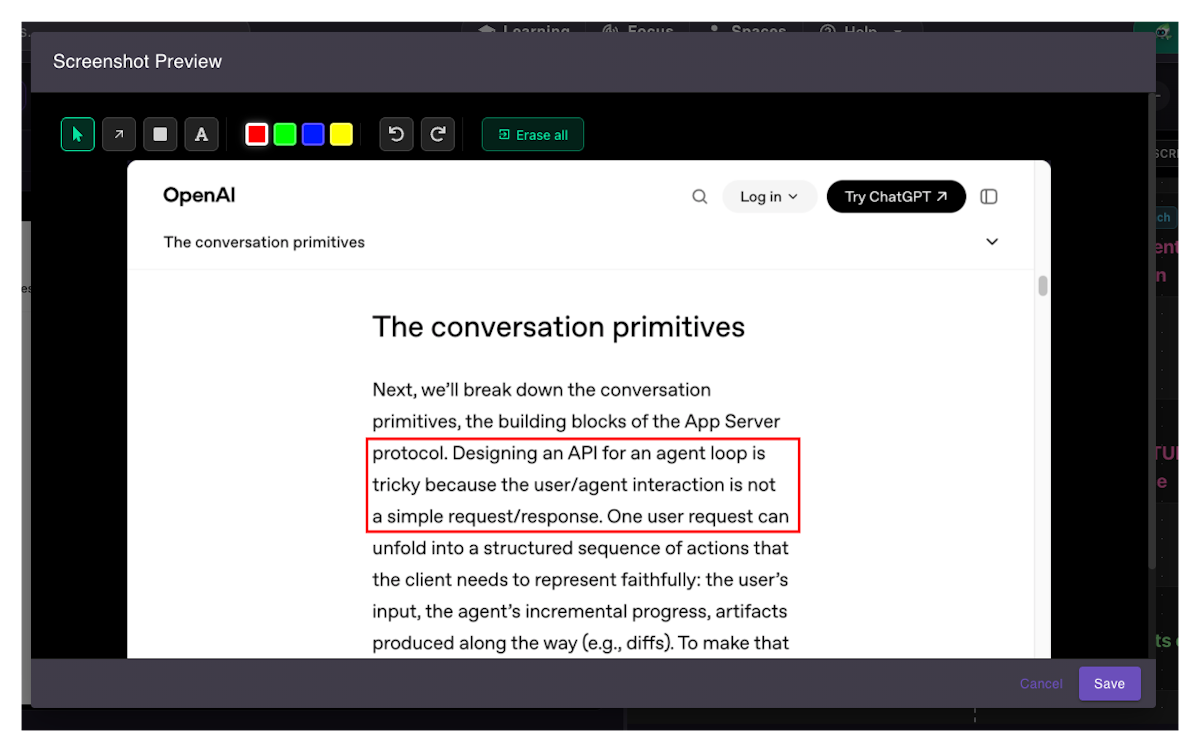
Screenshots is a built-in capture and annotation tool inside the SaveForLater.ai content viewer.
While viewing any saved content, click the Screenshot button in the toolbar. A preview modal opens with the current frame captured and ready to annotate.
Annotation tools:
| Tool | What it does |
|---|---|
| Arrow | Point to a specific element |
| Rectangle | Box off a region |
| Text (A) | Add a label or note directly on the image |
| Colors | Red, green, blue, yellow |
| Undo / Redo | Step back or forward through edits |
| Erase all | Clear all annotations and start fresh |
Click Save. The annotated screenshot is stored in the SCREENSHOTS tab of that content item — no separate file, no external app, no context lost.
Every screenshot you capture for that content accumulates in one visual gallery, attached to the item it came from.
How to take a screenshot
- Open any saved content item in the content viewer
- Navigate to the moment you want to capture (for video: pause at the right frame)
- Click the Screenshot button (camera icon) in the toolbar
- Annotate with arrows, shapes, or text labels
- Click Save — the screenshot lands in the SCREENSHOTS tab of this content item
Screenshots alongside Notes and Insight Map
Notes handles text annotation — reactions, questions, connections to other ideas. Screenshots handles visual capture. Both attach directly to the content item.
Insight Map gives you the structural map of the content. Screenshots gives you the visual gallery. When a diagram illustrates something that also appears in the Insight Map, both references point back to the same content item — nothing is disconnected.
Who uses Screenshots
Engineers and architects watching technical talks with system diagrams, architecture charts, or performance graphs. Screenshots with annotations lets them mark up what matters and keep the diagram attached to the talk it came from.
Students working through lecture slides and research papers. Key figures, charts, and diagrams in PDFs are capturable in the same interface — no exporting to a separate tool.
Knowledge workers who process a lot of video content and encounter visual frameworks they want to reference later. The screenshot gallery per content item becomes a quick visual index of the key moments.
Frequently Asked Questions
Does Screenshots work on all content types?
Yes — video, articles, and PDFs viewed in the content viewer. For video, pause at the frame you want to capture before clicking Screenshot.
Where are screenshots stored?
In the SCREENSHOTS tab of the specific content item they were captured from. They're attached to the item, not to a global gallery.
Can I access screenshots from multiple content items in one view?
Not currently. Screenshots are per content item. Navigate to the SCREENSHOTS tab within each item to view its visual gallery.
Can I delete screenshots after saving them?
Yes. Screenshots can be deleted from the SCREENSHOTS tab on the content item.
Is there a limit to how many screenshots I can take per item?
No hard limit. The SCREENSHOTS tab accumulates all captures for that item over time.
Can I share screenshots with teammates?
Screenshots are visible to teammates with access to the content item in a Shared Space. They appear in the same SCREENSHOTS tab for all users with access.
The bottom line
The most valuable moment in a video is sometimes a single frame. Screenshots keeps that frame attached to the content it came from — annotated, organized, and findable weeks later without re-watching anything.
Capture it once. Find it instantly.
Try Screenshots in SaveForLater.ai →
Related: Insight Map · Notes and Comments · Highlight Cards