200 Saved Items and You Can't Find the One You Need. Search and Filtering Fixes That.
You saved a specific article on Kubernetes deployment strategies about two weeks ago. You know it exists. You remember the main point. You cannot find it.
You scroll through your feed. You try a few keyword guesses. You give up and Google it again — find the same article, re-read it, and close the tab.
Every minute spent searching for something you already saved is a minute that shouldn't have happened.
The problem with large, unsearchable libraries
A read-later tool solves the "I'll lose this link" problem. It doesn't automatically solve the "I can't find this link in my own library" problem.
As libraries grow, the failure modes stack:
- Chronological browsing stops working past 50 items
- You remember the concept, not the exact title — and title search can't find it
- Related content is scattered across your feed, not grouped by theme
- You saved the same thing twice because you couldn't find the original save
- Team members duplicate research because they can't search each other's relevant saves
The problem isn't volume. It's retrievability. A library of 500 items you can search in 10 seconds is more useful than a library of 50 items you have to scroll through.
What Search and Filtering does
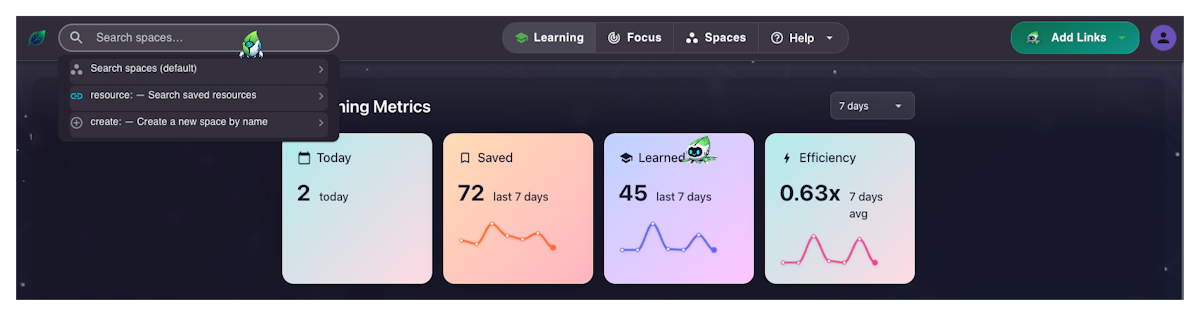
Search in SaveForLater.ai goes beyond title matching. It searches across:
- Titles and descriptions
- AI-generated tags
- Content inside PDFs — full text, not just the filename
- Video transcripts — what was said, not just the video title
Type natural phrases — "kubernetes deployment strategies" or "user interview techniques" — not keyword guesses. The search understands context: a video tagged "DevOps" will surface for "container orchestration" even if those exact words weren't in the title.
Content type filtering narrows results to articles, YouTube videos, PDFs, or LinkedIn posts. Searching "machine learning" filtered to PDFs surfaces your research papers. The same search filtered to YouTube surfaces your tutorial videos. Match the format to how you want to consume right now.
Date filtering lets you sort by newest or oldest first. Newest shows your latest research — most current thinking. Oldest reveals foundational saves you've forgotten — often exactly what someone new to a topic needs.
Tag-based discovery turns browsing into concept navigation. Click any tag to surface everything connected to that idea across your entire library — regardless of when it was saved or what format it's in.

How to search and filter
- Type natural language into the search bar — concepts, not exact titles
- Use content type filters (Article, YouTube, PDF, LinkedIn) to match your consumption mode
- Sort by newest or oldest first to find content by recency
- Click any tag to discover everything connected to that concept
- Combine search + type filter + date for precise research queries
Search alongside Spaces and Focus Mode
Spaces give your library a thematic structure that search can narrow further — search within a specific Space to focus results on a project or topic area. Focus Mode takes what search surfaces and turns it into a filtered learning session. Find what's relevant, then learn from it in a structured block.
Who uses Search and Filtering
Knowledge workers who need to surface a specific insight quickly — during a meeting, before a presentation, while writing a document. Search across transcripts and tags means the moment they need something, they can find it.
Teams building shared knowledge. Full-text search across a shared Space means everyone benefits from everyone else's saves — no duplicate research, no "I know we have something on this."
Researchers with large collections spanning multiple topics and formats. Tag-based discovery surfaces unexpected connections between research areas they didn't know were related.
Frequently Asked Questions
Does search look inside video content?
Yes. SaveForLater.ai indexes video transcripts, so searching for a concept will surface videos where that concept was discussed — even if it's not in the title or description.
Can I search inside PDFs?
Yes. Full-text PDF search is supported. Searching "regulatory compliance framework" will surface a PDF where that phrase appears in the text, not just the filename.
How do I search within a specific Space?
Navigate to that Space first, then use the search bar. Results are scoped to the content in that Space.
What's the difference between searching and filtering by tag?
Search returns results across all fields — titles, descriptions, tags, content. Tag filtering shows only items that have that specific tag applied. For broad discovery, search. For precise tag-based curation, filter by tag.
Can I save a search query?
Not directly as a saved search. If you find yourself repeating the same search, create a focused Space for that topic — it preserves your organizational intent permanently.
Does search rank results by relevance?
Yes. Results are ordered by relevance, not by recency. Most relevant content for your query appears first.
The bottom line
The library only works if you can find things in it. Search and Filtering turns a growing pile of saved content into a retrievable knowledge base — natural language queries, full-text search across transcripts and PDFs, tag-based discovery, and content type filtering all working together.
Stop Googling things you already saved.
Search your SaveForLater.ai library →
Related: Knowledge Spaces · Focus Mode · Smart Organization