Your Browser Bookmarks Are a Graveyard. Here's How to Actually Save Content Worth Keeping.
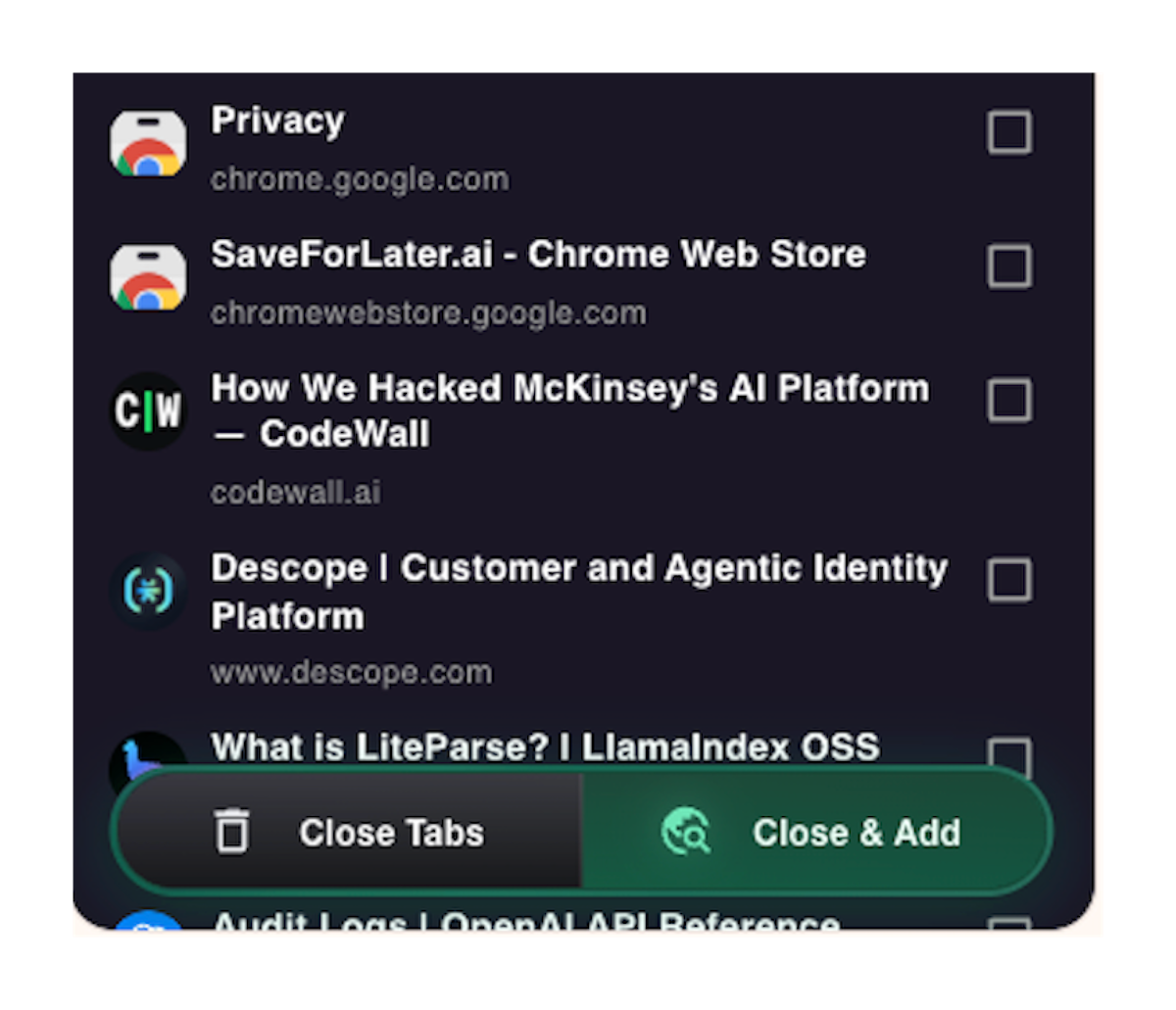
You're 600 words into an article that's genuinely changing how you think about something. You want to save it. So you bookmark it, or copy the URL into a Notion doc, or email it to yourself — and then you keep reading.
Three months later, you have 400 bookmarks you've never opened, a Notion page full of raw links, and no memory of what any of them were about.
The saving didn't fail. The process did.
The problem with saving content
Most tools treat saving as a solved problem. Paste a URL, add a tag, move on. But that framing misses what actually happens at the moment you want to save something:
- You're mid-focus. Switching apps or tabs costs real cognitive energy.
- You don't know what tags to apply yet — you haven't finished reading.
- There's no automatic extraction, so "saved" just means "link stored." You still have to do the work later.
- "Later" never comes, because when you return to a raw link, you have no idea what's in it.
The result is a growing backlog of things you meant to learn from — and don't.
That's not a discipline problem. It's a friction problem. Saving tools add work at exactly the wrong moment, and most of what gets saved never gets opened again.
What Content Saving does
Content Saving reduces the act of saving to a single click — and hands off everything else to AI immediately.
Install the SaveForLater.ai browser extension. From that point:
- A save button appears on any supported page: YouTube videos, articles, LinkedIn posts, tweets, PDFs
- Click once — the content is captured, no copy-pasting, no tab switching
- AI extracts key points and generates tags automatically before you've looked away
- Smart Organization suggests which Space the content belongs in — accept it or pick another in one click
You can also paste any URL directly into app.saveforlater.ai if you prefer not to use the extension.
The content is ready to learn from by the time you come back to it.
How to set it up
- Install the SaveForLater.ai browser extension
- Browse normally — a save button appears on supported pages
- Click it once to save
- Confirm or reassign the suggested Space (one click)
That's the full workflow. No tagging, no manual organizing, no copy-paste.
Content Saving alongside Smart Organization and Insight Map
Content Saving is the entry point — it captures. Smart Organization handles what happens next: AI tags the content, identifies themes, and routes it to the right Space automatically. You don't need to think about where something belongs at save time.
Once something is saved and organized, Insight Map turns it into a navigable visual structure — so when you return to a video or PDF weeks later, you can jump straight to the part that matters without re-watching or re-reading from scratch.
Save it in one click. Find it in seconds, months later.
Who uses Content Saving
Knowledge workers who encounter useful content throughout the day — while reading newsletters, watching conference talks, scrolling LinkedIn. They need saving to be invisible so it doesn't interrupt their actual work.
Students and researchers collecting sources across formats: academic PDFs, YouTube lectures, articles. One-click saving with instant AI extraction means they build a usable library instead of a pile of links.
Lifelong learners with more interesting content in front of them than time to process it. Content Saving lets them capture everything worth keeping, then work through it on their own schedule — with AI already having done the first pass.
Frequently Asked Questions
What content types does Content Saving support?
YouTube videos, articles (via URL), LinkedIn posts, tweets, and PDFs. The browser extension detects supported content automatically — you don't need to think about it.
Does it work without the browser extension?
Yes. You can paste any URL directly into app.saveforlater.ai. The extension is faster for in-flow saving, but it's not required.
What does AI extract at save time?
Key points, tags, and a Space suggestion. SaveForLater.ai processes the content immediately — so by the time you open it again, the structure is already there.
Do I have to tag content manually?
No. Tags are generated automatically. You can adjust them, but you never have to start from scratch.
What's a Space?
A Space is a collection — a topic, project, or area of interest. SaveForLater.ai suggests which Space a new item belongs to based on its content. You can accept the suggestion, pick a different Space, or create a new one.
Can I save a whole YouTube playlist at once?
Yes — Playlist Import lets you save an entire YouTube or LinkedIn playlist in one action. See Playlist Import.
Does saving content mean I don't have to read or watch it?
No. Saving captures and structures it. You still consume it — but AI extraction means you can navigate to exactly the part you need instead of starting from the beginning every time.
Is Content Saving available on mobile?
SaveForLater.ai is available on web, desktop, and chrome extension right now. It is on our roadmap later to support mobile compainion version.
The bottom line
Bookmarks don't fail because you forget to check them. They fail because by the time you saved the link, there was nothing to come back to — just a URL with no context, no structure, and no reason to open it.
Content Saving changes what "saved" means: one click, and the content is already processed and organized before you move on.
Start saving with SaveForLater.ai →
Related: Smart Organization · Playlist Import · Insight Map