Stop Juggling Tabs. Learning Studio Is One Place to Watch, Read, and Learn.
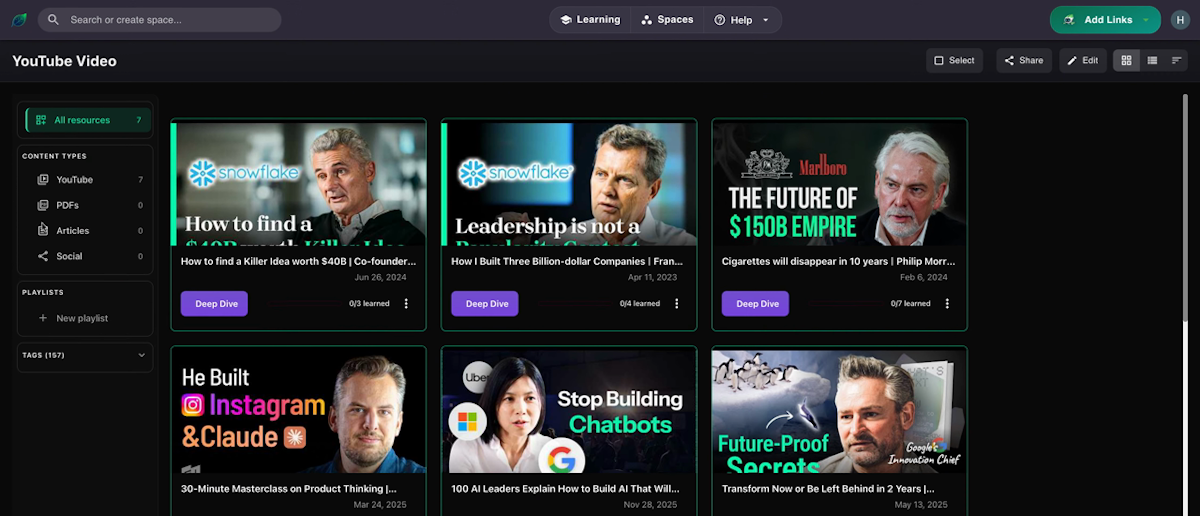
You're studying a 45-minute conference talk on database design. You need a note-taking app open in one tab, the video in another, and a third tab for looking up things you don't recognize. Every time something important is said, you alt-tab, type something, lose your place in the video, and scrub back.
By the end, your notes are a mess of half-sentences, your video timeline is covered in scrub marks, and you're not sure how much you actually retained.
That's not a focus problem. It's an environment problem. You're trying to do deep work across five separate tools that don't know each other exist.
The problem with multi-tool learning sessions
Consuming saved content in its native context means juggling:
- A video player (YouTube, in a separate tab)
- A note-taking app (Notion, Apple Notes, wherever)
- Your bookmarks or content library (a third place)
- Sometimes a reference tab for looking things up
Each tool switch is a context switch. Research on working memory is consistent here: even brief interruptions — switching apps, relocating in a video, finding the note you were taking — degrade comprehension. You don't just lose time. You lose the thread.
The standard read-later tool stores your content and then hands you back to this exact fragmented environment when it's time to actually learn.
What Learning Studio does
Learning Studio is a single workspace for engaging with your saved content — built for sessions where you're ready to sit down and actually learn.
It consolidates what normally lives in multiple tabs:
- Content playback — watch videos or read articles directly inside the app
- Highlighting and annotation — mark important passages and moments without leaving the view
- Note-taking — add your own notes attached to the content, not in a separate doc
- Concept connections — build visual relationships between ideas across multiple pieces of content
- No organizational controls or notifications — nothing to distract from the content in front of you
The design decision is intentional: Learning Studio strips out everything that belongs to browsing and organizing. Those modes live elsewhere. In Learning Studio, the only thing on the screen is your content and the tools to engage with it.
How to use Learning Studio
- Navigate to Learning Studio in the main navigation
- Select a content item from your library to open in the workspace
- Engage with the content — highlight, annotate, take notes, all within the same interface
- Build connections between the current item and related content in your library
- Approach sessions with a clear intention: "What do I want to understand by the end of this session?"
Learning Studio works best in dedicated blocks of 30–90 minutes. It's not for checking a quick reference or casually browsing — that's what your Spaces are for. This is the environment for sustained engagement.
Learning Studio alongside Focus Mode and Spaces
Spaces is where you organize and browse. Focus Mode is where you narrow your queue to a topic. Learning Studio is where you engage deeply with specific items from that queue.
The workflow: save content throughout the week → organize it in Spaces → use Focus Mode to find what's relevant → sit down in Learning Studio for the actual learning session.
Who uses Learning Studio
Developers and engineers working through technical content — architecture talks, documentation, deep-dive tutorials. Learning Studio lets them highlight key technical concepts, annotate code patterns, and connect ideas across multiple sources without leaving the interface.
Students and researchers in extended study sessions. Instead of a four-tab setup to get through one paper or lecture, Learning Studio provides everything in one place — and their notes stay attached to the content that generated them.
Professionals doing research for a project, presentation, or decision. Learning Studio sessions produce notes and highlights that are already organized by content item, not scattered across apps.
Frequently Asked Questions
Is Learning Studio different from just opening a saved item normally?
Yes. Opening a saved item normally gives you all the views: Highlights, Questions, Insight Map, etc. Learning Studio is a purpose-built workspace for active engagement — it strips away organizational controls and keeps the focus on the content and annotation tools.
Do my notes and highlights in Learning Studio sync back to the content item?
Yes. Notes and highlights made in Learning Studio are attached to the content item — they appear in the Notes and Highlights tabs when you view that item anywhere else in the app.
Can I use Learning Studio on a short session?
You can, but it's optimized for extended sessions. For quick reference checks, the standard content view is faster.
How is this different from Focus Mode?
Focus Mode sets a learning topic and filters your queue. Learning Studio is the workspace where you actually consume and annotate specific items. They're complementary: use Focus Mode to decide what to work on, then use Learning Studio to work on it.
Does Learning Studio work for all content types?
Yes — video, articles, and PDFs all open in the Learning Studio workspace. Annotation tools adapt to the content type.
What's the ideal session length?
30–90 minutes focused on a specific topic or goal. Entering with a clear intention ("what do I want to understand better by the end of this session?") significantly improves what you retain.
The bottom line
Passive consumption is easy. Active learning — the kind that changes how you think and what you can do — requires a different environment. Learning Studio is that environment: one workspace, one screen, one session of real engagement.
Close the extra tabs. Open Learning Studio.
Try Learning Studio in SaveForLater.ai →
Related: Focus Mode · Knowledge Spaces · Notes and Comments