Your Saved Content Is a Pile. Spaces Turns It Into a Knowledge Collection.
You've saved 47 articles about microservices architecture. Your colleague asks for that specific one about event sourcing patterns you bookmarked last week. You start scrolling. You scroll some more. You open a few wrong ones. You give up and Google it again — a thing you already found once.
That's not a search problem. It's an organization problem. Content without structure is just accumulation.
The problem with flat content libraries
Most read-later tools give you a feed. Everything lands in the same place, sorted by when you saved it. It works fine when you have 20 items. By 200, it's unusable.
The failure modes are predictable:
- You can't find specific items without remembering exact titles or URLs
- There's no way to see "everything I know about X" in one view
- Team members can't benefit from your research because it's locked to your personal feed
- Related content from different formats (video + article + PDF) is scattered across the same undifferentiated list
The problem isn't that you saved too much. It's that there's no structure to make what you saved retrievable.
What Knowledge Spaces does
Spaces are thematic collections — digital filing systems designed around how you actually think, not when you saved something.
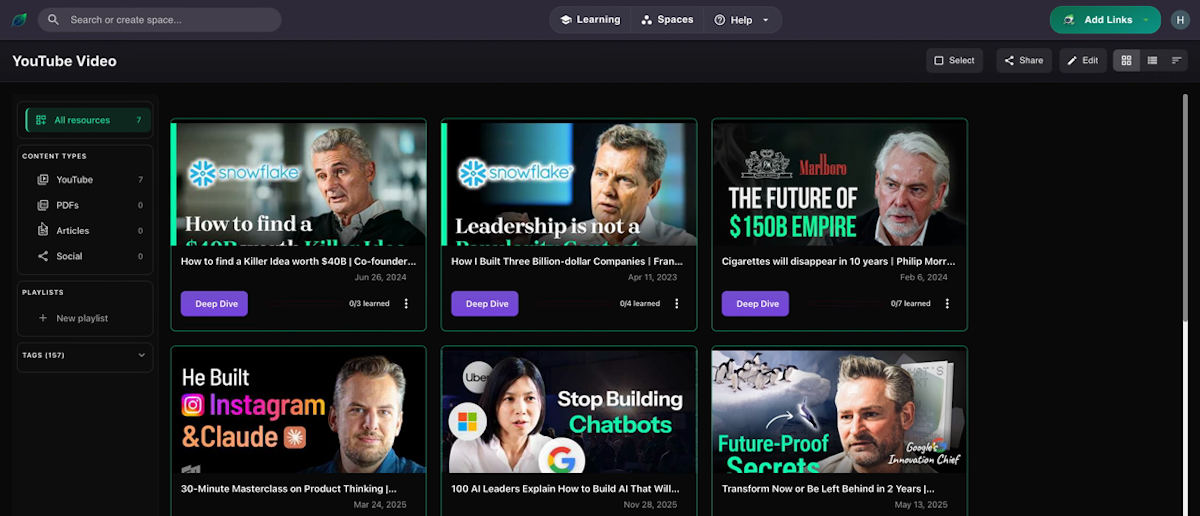
Each Space groups content by topic, project, or learning goal. A "System Design" Space might hold YouTube talks, architecture PDFs, and technical articles — together, because they serve the same purpose, regardless of format.
Key capabilities:
- Create a Space around any topic or project — type the name in search, and if no Space exists, you can create one
- Private spaces for exploratory research where you're still forming your views
- Team spaces where colleagues can add to and benefit from shared collections
- Public spaces as curated knowledge portfolios you share with the broader community
- Filter by content type within a Space — articles, videos, PDFs — to match how you want to consume
- Tags create cross-Space connections: an insight about database indexing can live in "Backend Architecture" while still being discoverable via the "Performance" tag in any other Space
How to use Spaces
- From the Spaces section, search for your topic — or type a new name to create a Space
- Save content directly into a Space, or move existing saves from your feed
- Use content type filters inside a Space to browse by format
- Set a Space to private, team, or public based on who should see it
- Share a team Space with colleagues — new items they add are visible to everyone with access
Spaces alongside Focus Mode and Smart Organization
Smart Organization suggests which Space each new item belongs to at save time — you confirm or reassign with one click. Spaces don't require manual filing.
Focus Mode uses your Spaces as the source for filtered learning sessions — when you focus on "distributed systems," your Learning Queue narrows to the content in that Space. The better your Spaces, the more useful your Focus sessions.
Who uses Spaces
Researchers and knowledge workers building expertise across multiple domains. Spaces let them maintain parallel tracks — one for each project or topic — without everything bleeding together.
Teams building shared knowledge. Instead of scattered Slack links and shared docs, a team Space becomes the living repository for everything the team has found on a given topic.
Students managing multiple subjects or research areas. Each course, each paper topic, each exam prep area gets its own Space — focused, organized, separate.
Frequently Asked Questions
How many Spaces can I have?
There's no hard cap. Create as many as your actual topics and projects require.
How is a Space different from a folder?
Folders force you into hierarchy — you have to decide where something lives before you've thought it through. Spaces are flat collections with tags for cross-connections. Content can be organized around a theme even if that theme cuts across multiple subject areas.
Can one piece of content be in multiple Spaces?
Content lives in one Space but can be tagged across topics, making it discoverable from any Space that shares that tag.
What's the right size for a Space?
When a Space has 50+ items and covers multiple distinct topics, consider splitting it. Focused, smaller Spaces are more useful than large, catch-all ones. Use the size filter (xs, small, medium, large) to audit your library.
Can I make a team Space private again?
Yes. Space visibility is adjustable — private, team, and public are modes, not permanent settings.
What happens to a Space if I delete it?
Content doesn't delete when a Space does — it returns to your main library. Deleting a Space removes the collection, not the items in it.
The bottom line
A pile of saved content is a liability that grows. A Space is an asset that compounds. Every item you add makes the next search faster, the next project better resourced, and the next team conversation better informed.
Your research deserves structure.
Start organizing with SaveForLater.ai →
Related: Smart Organization · Focus Mode · Playlist Import